Month: January 2017

How to Add a WordPress Profile Pic with Gravatar

Ever see a WordPress blog post that includes the user’s profile pic with their name? If you would like to set up one for your account, it is easy to do with Gravatar through WordPress.com. Note, the email address you use for Gravatar will have to be the same email address assigned to your wordpress account for this to work, and the profile pic will appear on comments or posts on other sites that use Gravatar when logged in to your account.

Step 1. Log in to the backend of your wordpress site, navigate to Users, and find your account.

Step 2.  Under the profile pic, select the Gravatar link
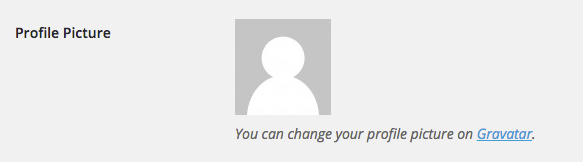

Step 3.  Select Create Your Own Gravatar button


Step 4. Create an account with your wordpress user account email


Step 5. Activate your account through the confirmation email


Step 6. Log in and select add a new image under the correct email address


Step 7. Find the picture you want to use as your profile pic, and crop to your liking.
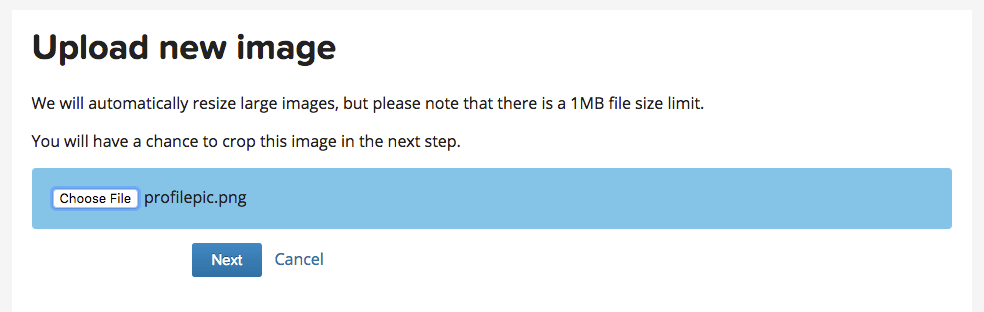

Step 8. That’s it! Refresh your browser and log back in to your website dashboard, and you should now see your profile pic in your user profile.

How to Remove Duplicate Google Map Listings

After a lot of research and hours on the phone with Google Maps support, hopefully this guide will help anyone that runs into the same situation with Google creating multiple map listings for one office location. Apparently this is a common problem for doctors and dentists as Google seems to want to give each individual their own listing, which is not only annoying to maintain but a headache if they no longer work there. Best practice also tells us we should only have one listing per location, so below are the steps to fix it.

    1.  In order for this guide to work for you, you must be using the same Google account that your current website is claimed in the google search console property, otherwise you will need to verify the listing with a phone call or postcard. screen-shot-2016-09-13-at-10-52-14-am
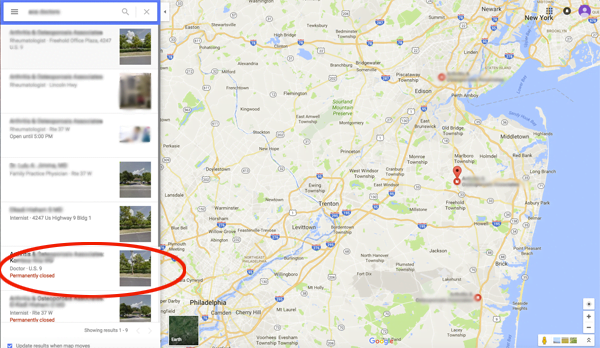
    2.  Go into Google Maps and find the listing you would like to delete.  In this example, the one has been marked permanently closed since it was an old doctor that no longer works there.
    3. Claim this business.  It should be instant verification if the website is claimed in your search console.screen-shot-2016-09-13-at-10-45-58-am
      screen-shot-2016-09-13-at-10-46-21-am
    4. Go to your google places dashboard, find the listing, and click Manage Location. screen-shot-2016-09-13-at-10-47-17-am
    5. If marked permanently closed, click Review and reopen the listing.  Then go into manage listing and click Submit at the bottom to verify all the information and to publish the listing.screen-shot-2016-09-13-at-10-47-44-am
    6.  Now go back into your google dashboard and find the now published listing.
      screen-shot-2016-09-13-at-10-48-33-am
    7.  Click Manage Location and find the menu in the top left, and then click Settings.
      screen-shot-2016-09-13-at-10-48-54-am
      screen-shot-2016-09-13-at-10-49-09-am
    8.  Scroll to the bottom and select Delete Page. screen-shot-2016-09-13-at-10-49-23-am
    9.  Google will make you log back in to your Google account, and then select all boxes and click Delete Account. screen-shot-2016-09-13-at-10-49-42-am

And that should be it! Give Google a day or two to update their map listings, and you should no longer see the duplicate listing in search results.