Tracked downloads and file analytics for WordPress.
WP FileTrace is a WordPress plugin developed by Asenka Interactive for creating, managing, and measuring tracked file downloads.
Instead of linking visitors directly to a PDF, document, ZIP file, or other downloadable asset, WP FileTrace creates a tracked link that records the download before securely handing the visitor off to the requested file.
It works with files in the WordPress Media Library as well as files hosted at external URLs, and provides two simple ways to distribute them:
- Shortcodes for download buttons placed on WordPress pages and posts
- Tracked links for email, documents, external websites, or anywhere a normal URL can be used
Installing WP FileTrace
Download the latest WP FileTrace release from GitHub.
In WordPress:
- Go to Plugins ? Add New Plugin.
- Select Upload Plugin.
- Upload the WP FileTrace ZIP file.
- Click Install Now.
- Activate WP FileTrace.
After activation, a new WP FileTrace item will appear in the WordPress admin menu.
WP FileTrace also includes its own GitHub-based update system. Once installed, newer releases can appear through the normal WordPress plugin update interface.
Creating Your First Tracked Download
Open WP FileTrace in the WordPress admin.
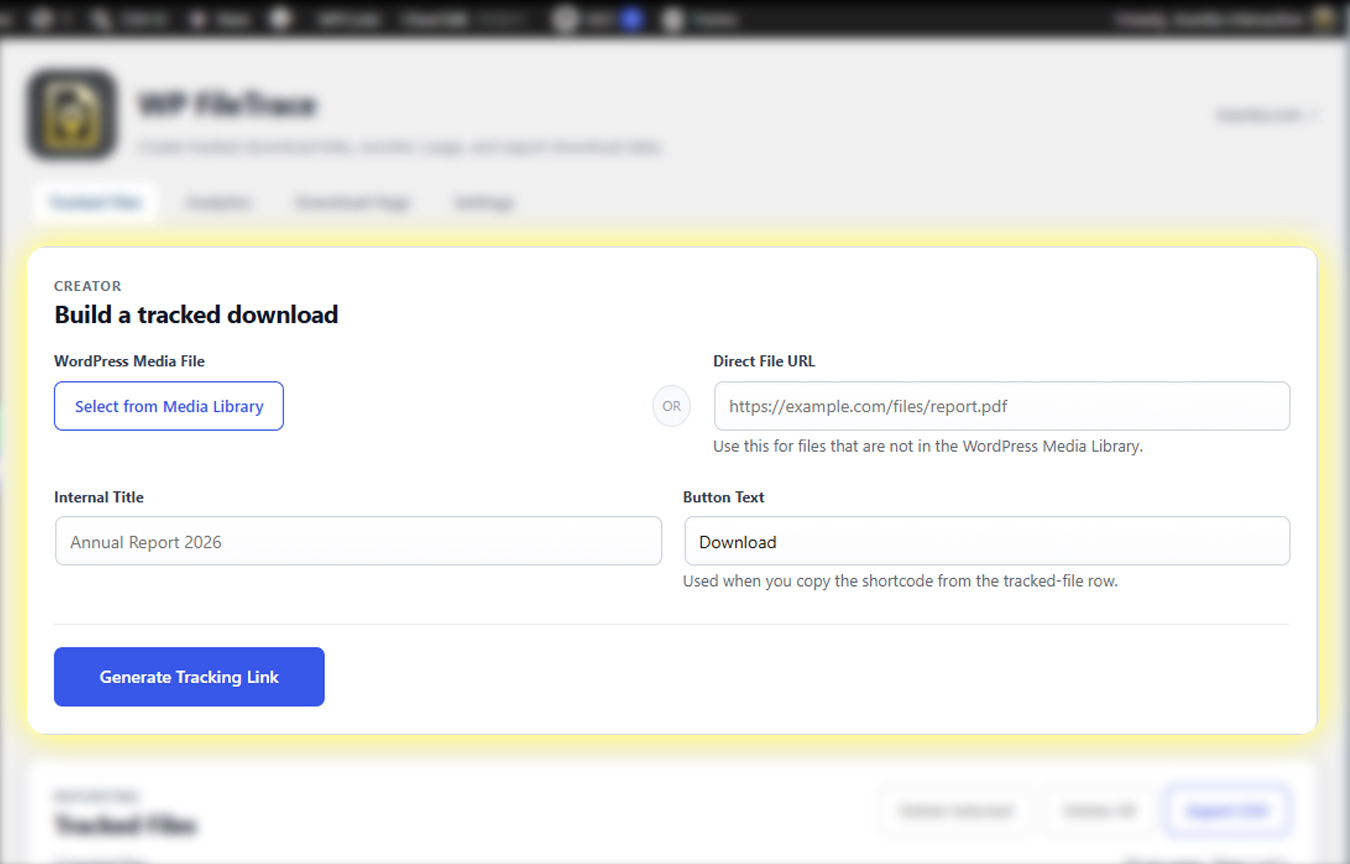
The Tracked Files tab contains the Build a tracked download tool.
There are two ways to choose the file you want to track.
Option 1: Select a WordPress Media Library file
Click Select from Media Library and choose an existing file.
This is the preferred method for files already hosted by WordPress.
Option 2: Enter a direct file URL
Enter the complete URL into the Direct File URL field.
For example:
https://example.com/files/annual-report.pdf
This can be used for files that are not stored in the WordPress Media Library.
Give the tracker a name
Use Internal Title to give the tracked file a recognizable name, such as:
2026 Annual Report
This makes the file easier to identify later in the WP FileTrace reporting table.
Set the button text
The Button Text field controls the text used when WP FileTrace generates a shortcode button.
For example:
Download Annual Report
Click Generate Tracking Link when finished.
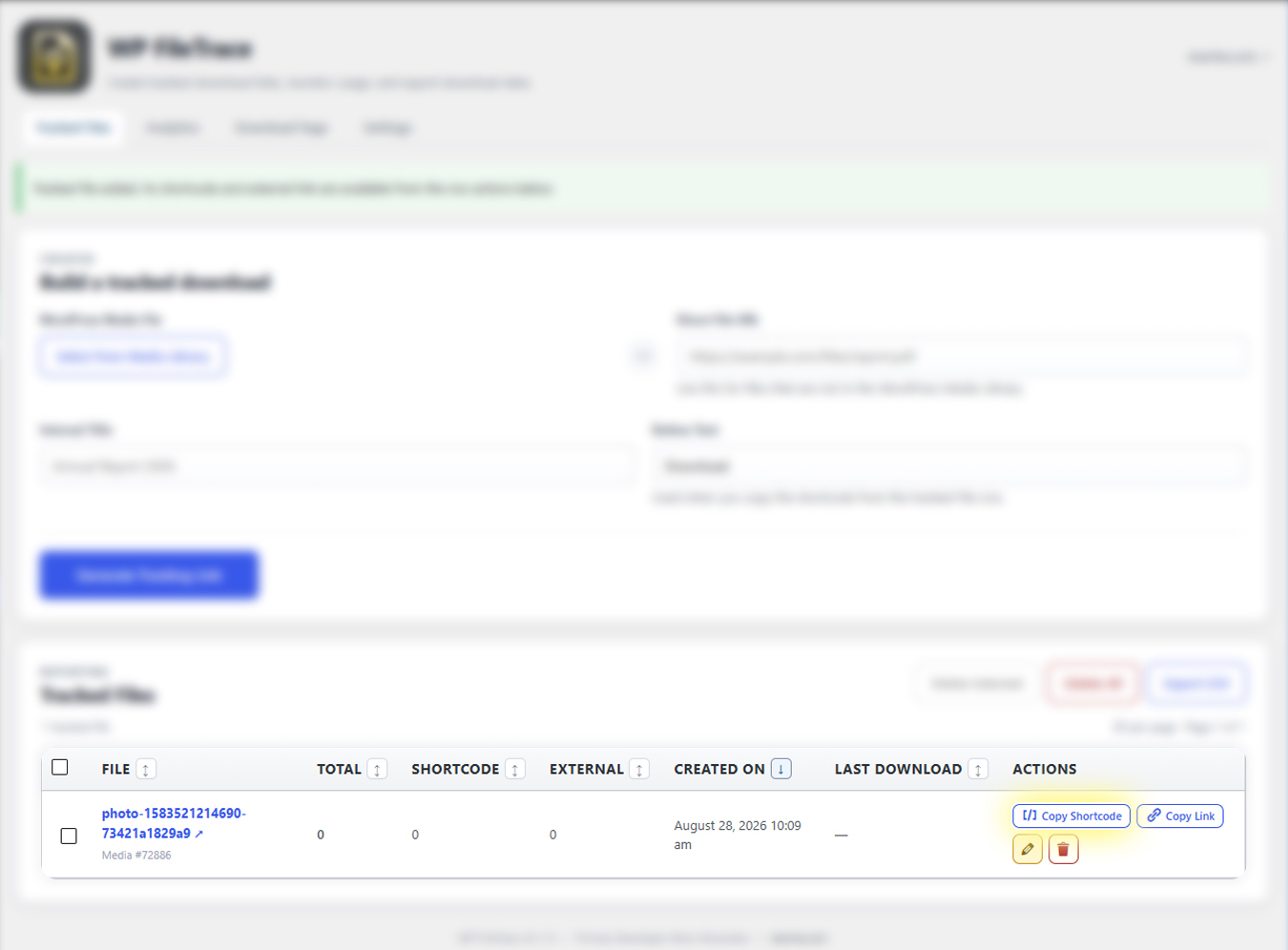
The new tracker will appear in the Tracked Files table.
Adding a Tracked Download to a WordPress Page
For files that will appear on your website, the easiest method is the WP FileTrace shortcode.
Find the file in Tracked Files and click the Copy Shortcode button.
A shortcode will look similar to:
Paste the shortcode into a WordPress page, post, or other location that supports shortcodes.
WP FileTrace will render it as a download button.
When a visitor clicks the button, WP FileTrace records the download and then begins the file download.
Because the download originated from WordPress content, WP FileTrace also knows which page the visitor came from. After the download begins, the handoff page can provide a Back to previous page link that returns the visitor to that page.
Using a Tracked Link Outside WordPress
You do not have to use a shortcode.
Each tracker also provides a regular tracked URL using the Copy Link action.
This URL can be used in places such as:
- Email campaigns
- Newsletters
- PDF documents
- Social posts
- Client communications
- External websites
- Custom buttons or page-builder elements
Downloads through this link are counted as External downloads.
If a tracked link is manually placed on a page of the same WordPress website, WP FileTrace can also capture the originating page context. This allows the download page to return the visitor to the page they were viewing.
Links opened from email or another external source do not have an originating WordPress page, so those visitors are instead shown Back to main site.
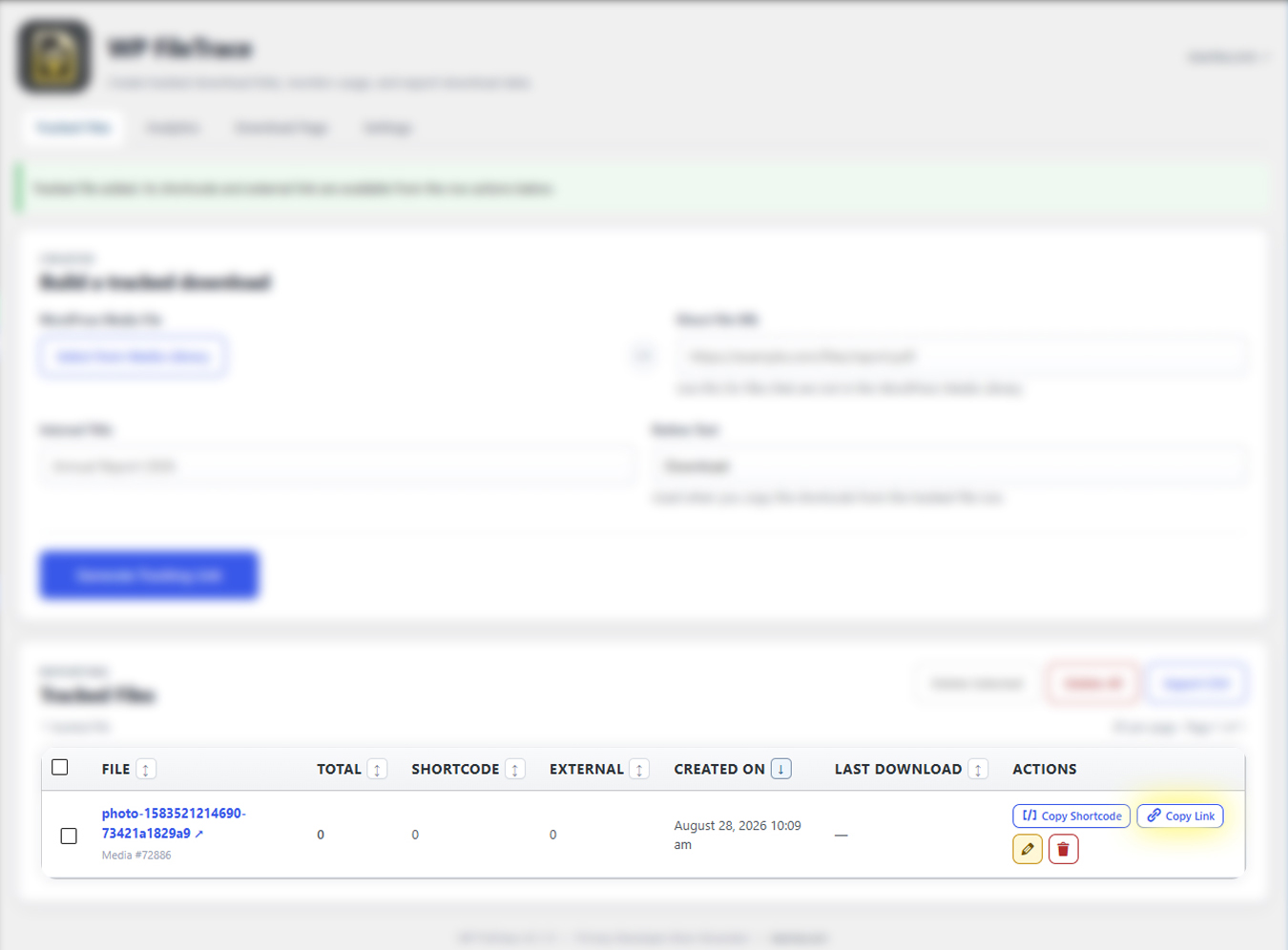
Understanding the Tracked Files Report
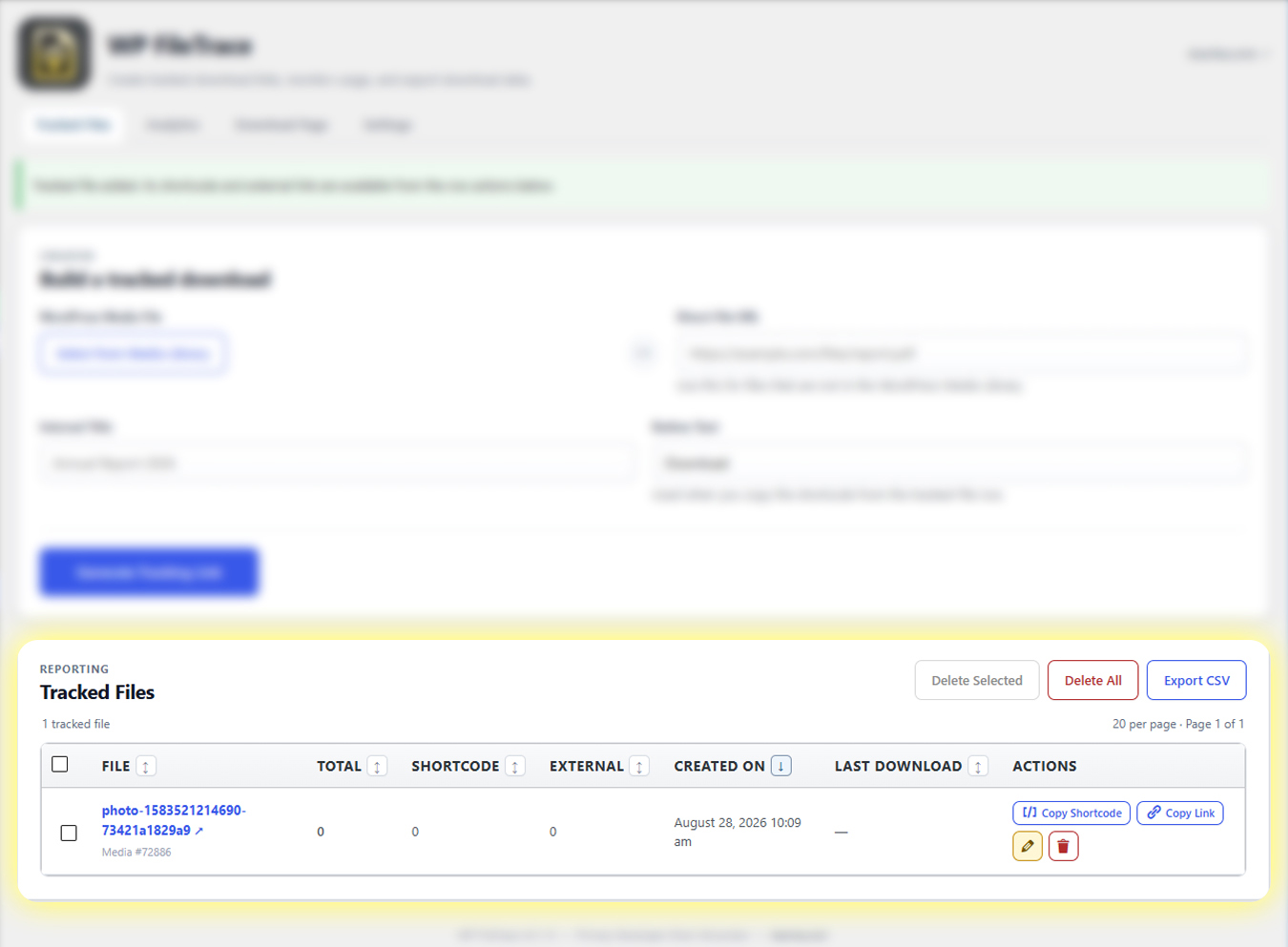
The Tracked Files table acts as the main reporting and management area for WP FileTrace.
For every tracked file, WP FileTrace displays:
Total
The total number of recorded downloads from all tracked sources.
Shortcode
Downloads made through a WP FileTrace shortcode button.
External
Downloads made through the shareable tracked URL.
Created On
The date and time the tracker was created.
Last Download
The most recent recorded download.
The table can be sorted by file name, download counts, creation date, and last download date.
For larger libraries, WP FileTrace automatically paginates the list at 20 tracked files per page.
The Download Page
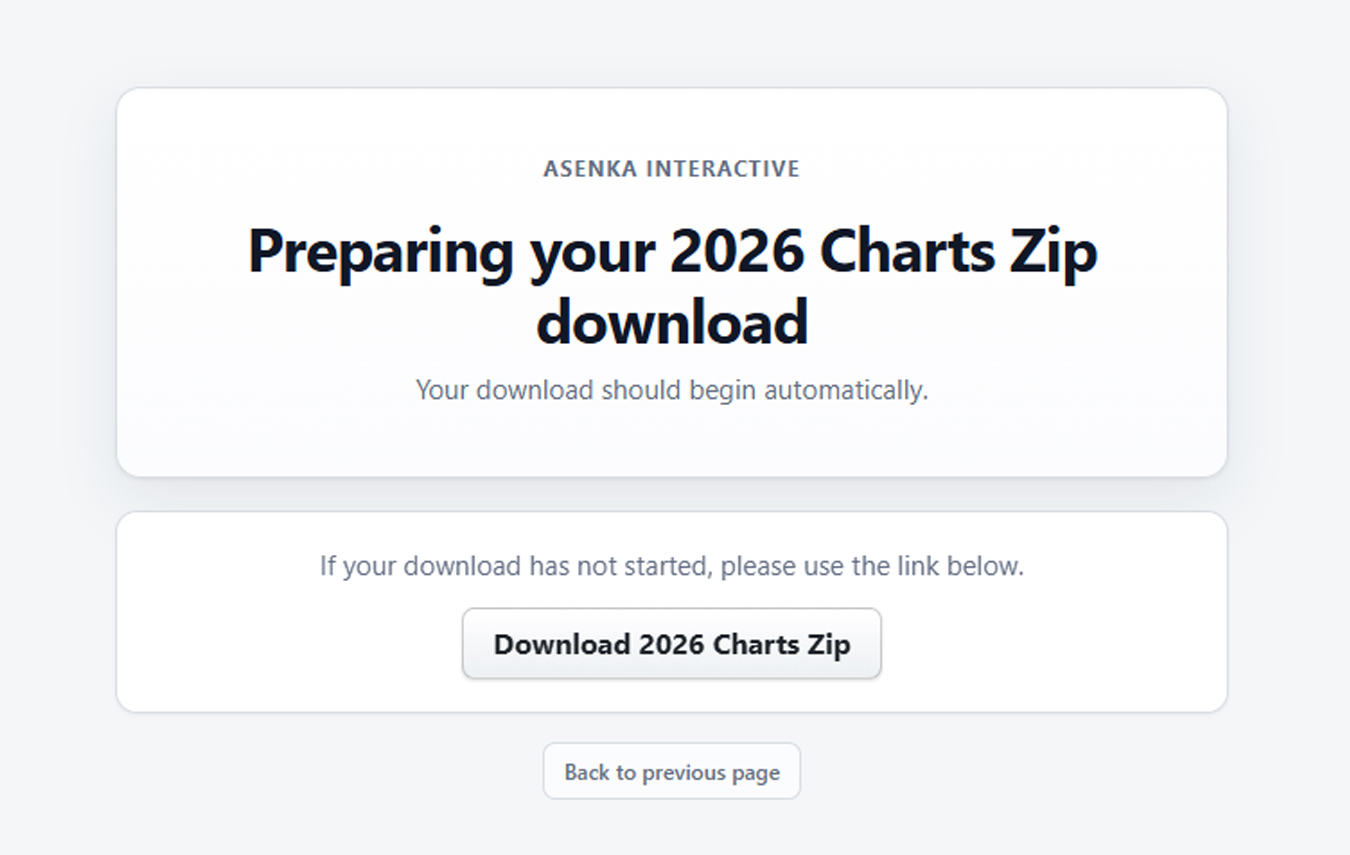
Every successfully recorded WP FileTrace download passes through a lightweight Download Page before the requested file begins downloading.
The default page is intentionally simple: it confirms that the file is being prepared, begins the download automatically, and provides a manual download option if the browser does not start it.
The manual download fallback does not create another download count. WP FileTrace uses a separate no-track retry route so retrying the same download does not duplicate the counter or analytics event.
The page also provides:
- Back to previous page when the originating WordPress page is known
- Back to main site when the download originated externally
Customizing the Download Page
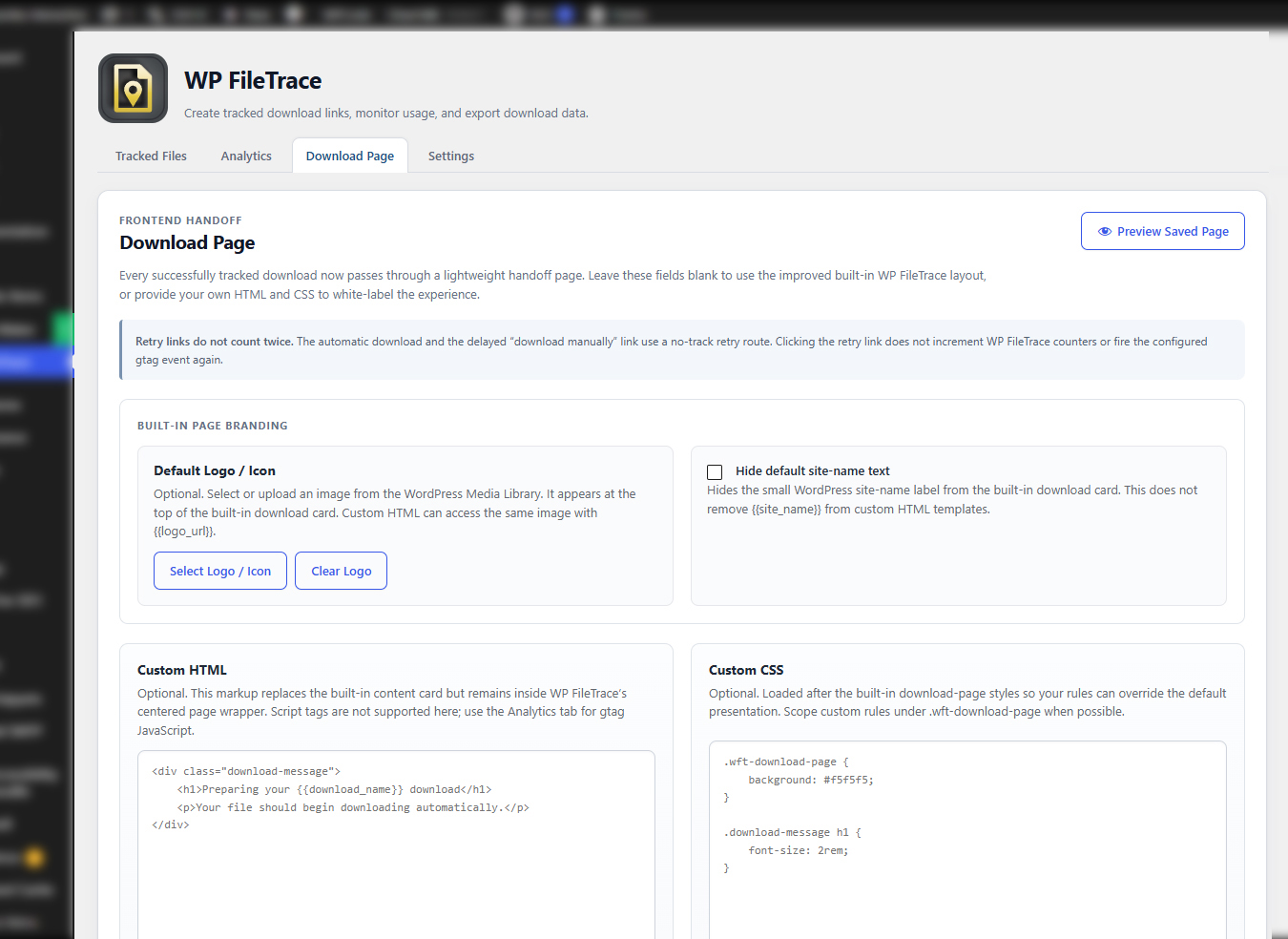
Open the Download Page tab to customize the visitor-facing download experience.
Logo / Icon
Choose an image from the WordPress Media Library to display at the top of the built-in download page.
Site Name
The default site-name label can be hidden if you prefer to use only a logo or your own custom design.
Custom HTML
For greater control, custom HTML can replace the standard WP FileTrace content card.
Custom CSS
Custom CSS can be added to white-label the page and match the website’s existing design.
WP FileTrace provides template variables that can be inserted into custom HTML:
{{download_name}} — the WP FileTrace tracker title
{{file_name}} — the actual downloaded filename
{{download_url}} — the safe retry/download URL
{{download_source}} — shortcode or external
{{via_page_id}} — originating WordPress content ID
{{via_page_title}} — originating page/post title
{{via_page_url}} — originating page/post permalink
{{return_url}} — originating page URL when available, otherwise the main website URL
{{site_name}} — WordPress site name
{{site_url}} — website home URL
{{logo_url}} — selected download-page logo URL
The Preview Saved Page button can be used to test the design without creating a download count, triggering a file download, or firing a configured analytics event.